Things GitHub Actions Tutorials Tend to Skip
You've reached the end
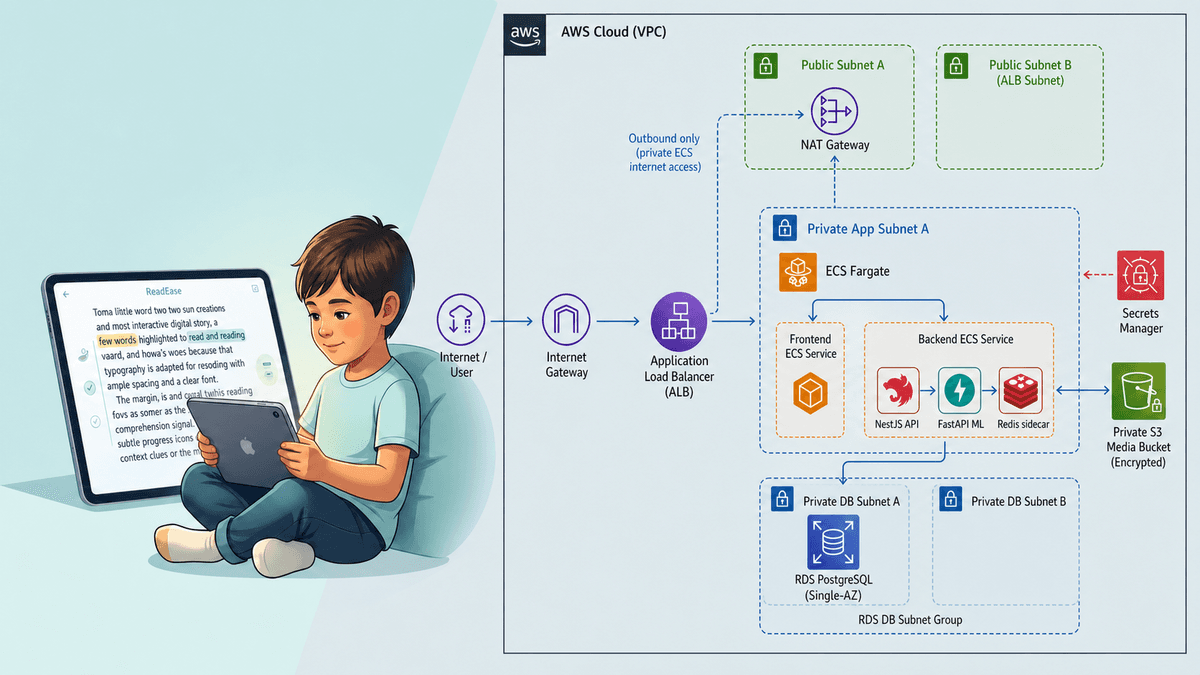
Part 1 wired up a working basic CI/CD pipeline. It has weaknesses though: servers can crash from runs trampling each other, long-lived keys can leak, and the heavy build slows everything down. This Part 2 walks through how to fix each weakness with more advanced DevOps techniques.
Concurrency control
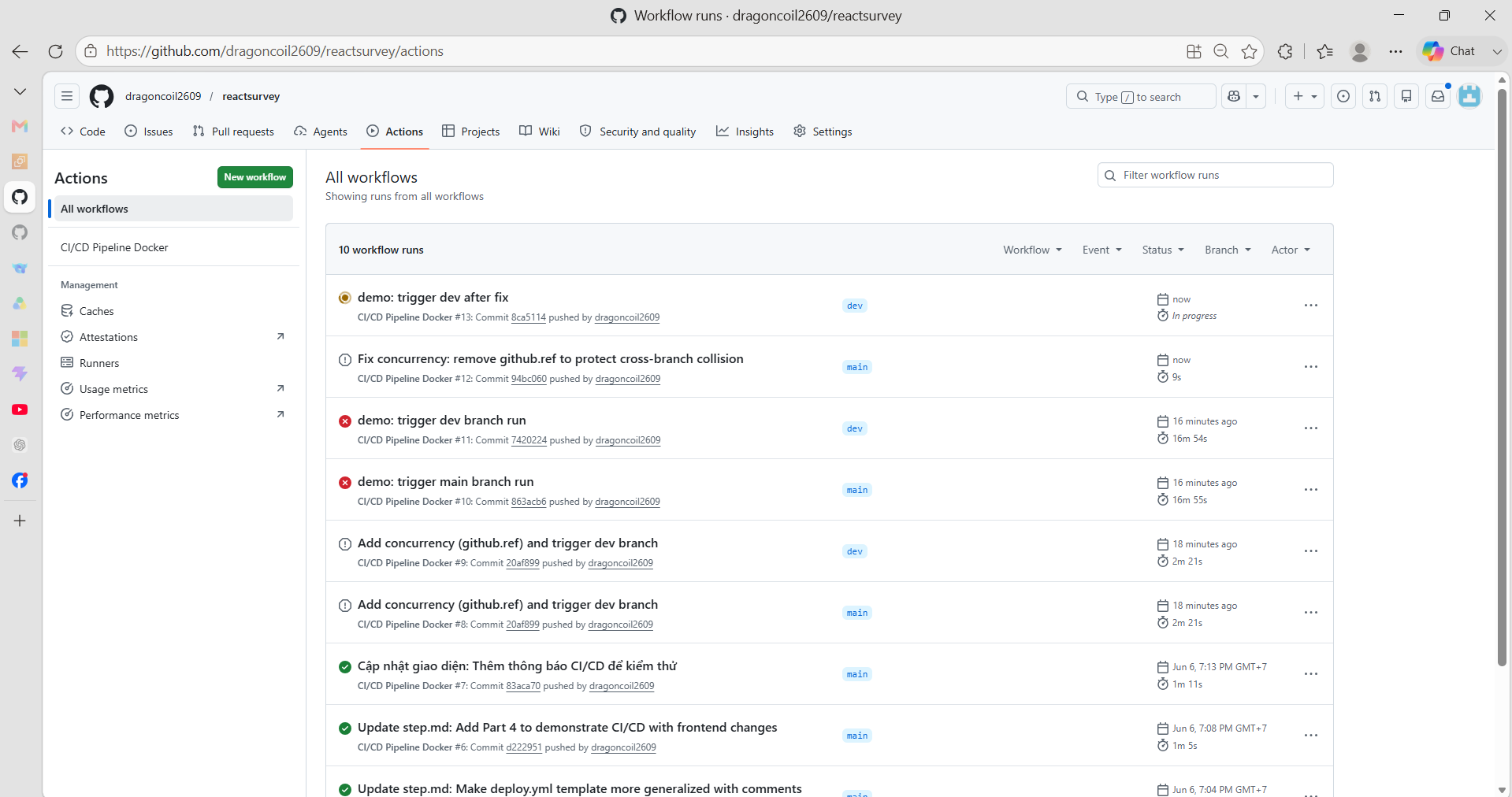
When multiple developers push to main at the same time, every push kicks off a deploy that runs in parallel. Two runs racing to overwrite the same server can collide on ports, lock the database, and bring the whole system down. The concurrency setting exists to solve this.
GitHub Actions gives us two mechanisms: Queue and Cancel. By grouping runs through the group property, we force them to stop running in parallel.
1. Queue (single-slot waiting room)
If you only set group and configure nothing else, GitHub Actions falls back to the queueing rule. The queue holds at most one run in the Pending state.
- If Run 1 is already running, Run 2 (the next one in) lines up in the queue.
- If Run 3 then shows up, it takes Run 2's slot in the queue and Run 2 is dropped. Once Run 1 finishes, Run 3 is the one that gets to run next.
Why: when deploying, we only care about the latest code — there is no point spending resources on an outdated build (Run 2).
2. cancel-in-progress (kill on the spot)
If you do not want Run 3 to wait for Run 1, add cancel-in-progress: true. This flag stops the in-flight Run 1 immediately so Run 3 can take over.
Important caveat: be careful with cancel-in-progress: true during the Deploy stage. If a run gets killed while it is copying files to the server, the server can end up in a half-applied, broken state. For deploys that write directly to EC2, sticking with the Queue mechanism (let runs wait) is safer than Cancel (let runs kill each other).
(Hands-on) Tip on the Group key:
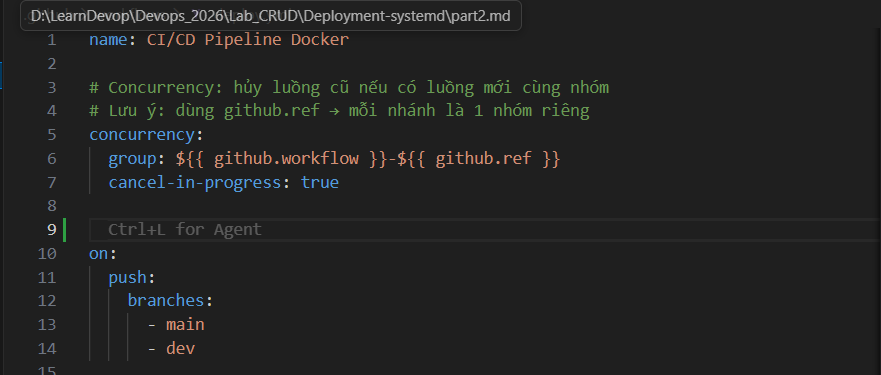
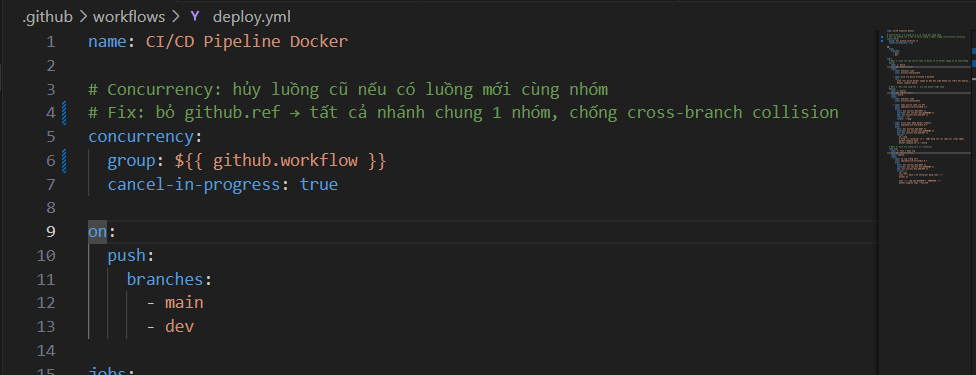
A lot of tutorials online use group: ${{ github.workflow }}-${{ github.ref }}. That only prevents collisions within the same branch. If main and dev both deploy to the same EC2 server, they produce two separate groups and still run in parallel.
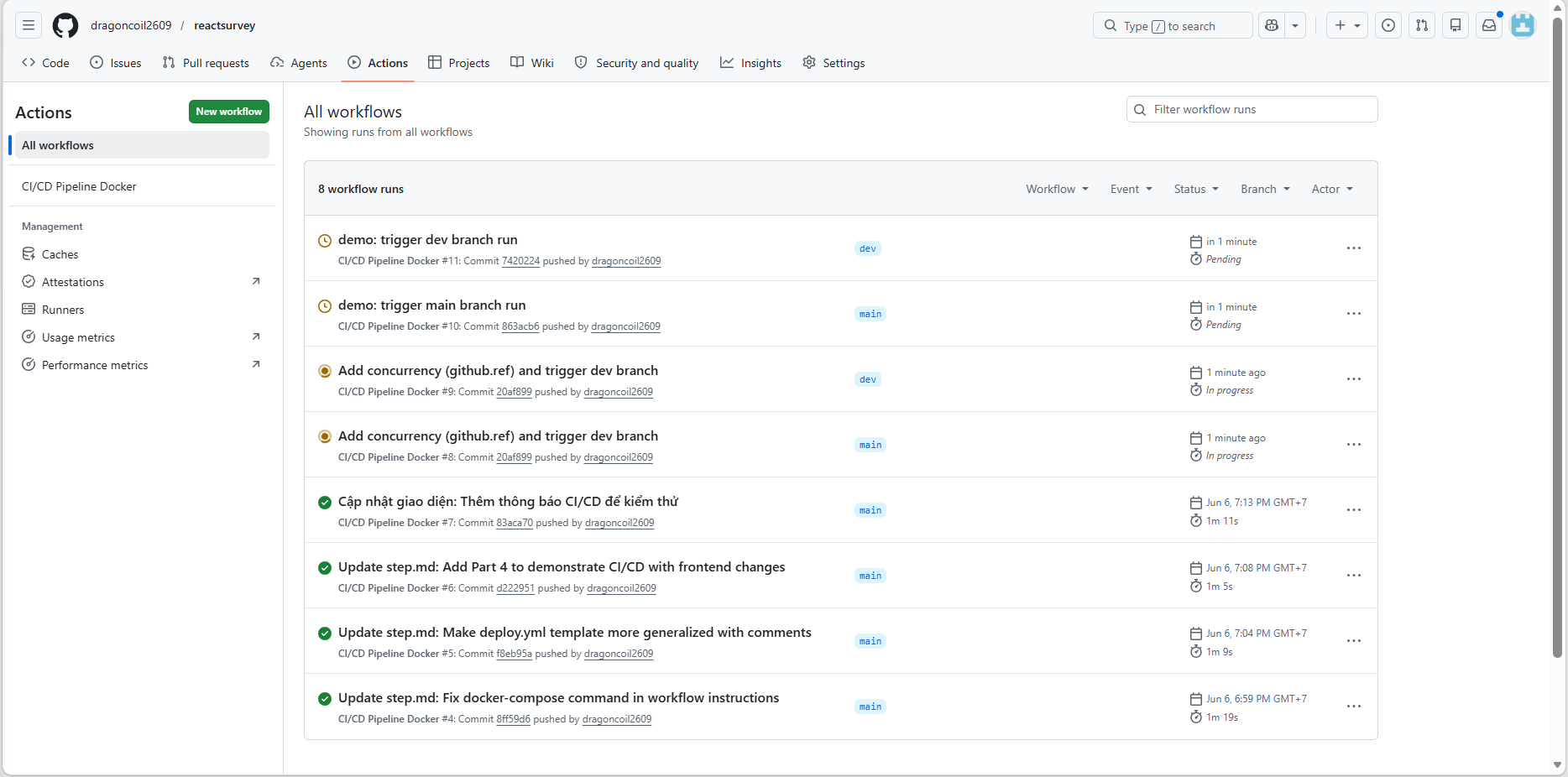
To close the hole, drop the ${{ github.ref }} part. Every run of this workflow — regardless of branch — falls into the same group:
Reference: Using concurrency - GitHub Docs
Which branch does GitHub read the YAML from
Basic pipelines usually only listen to push or pull_request. In practice the GitHub Actions trigger ecosystem is much broader:
- schedule: cron-based scheduling (e.g. nightly security scan at 2am).
- check_run / check_suite: react to results from code-quality systems (e.g. SonarQube).
- branch_protection_rule: fires when somebody changes a branch protection rule.
- delete / discussion: run a cleanup when a branch is deleted, or send notifications on new discussion comments.
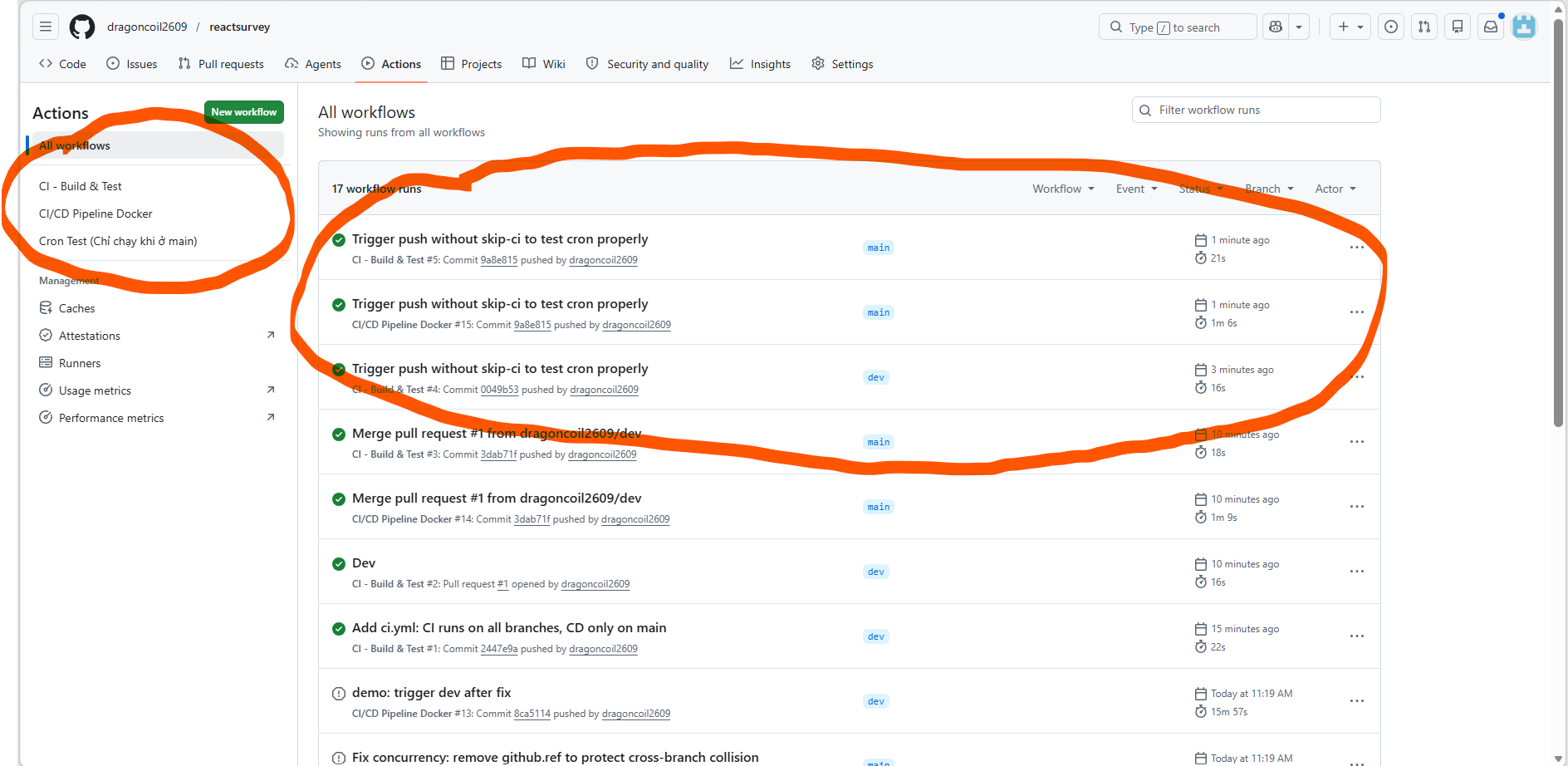
Implicit rule: a push event always reads the YAML on the branch that was just pushed. But for "external" events (events that are not tied to a specific commit — schedule, discussion, etc.), GitHub only scans for the YAML file on the default branch (main).
(Hands-on) The cron job that never runs:
A common trap: create a test-cron branch, write a scheduled workflow, and wait forever for it to fire.
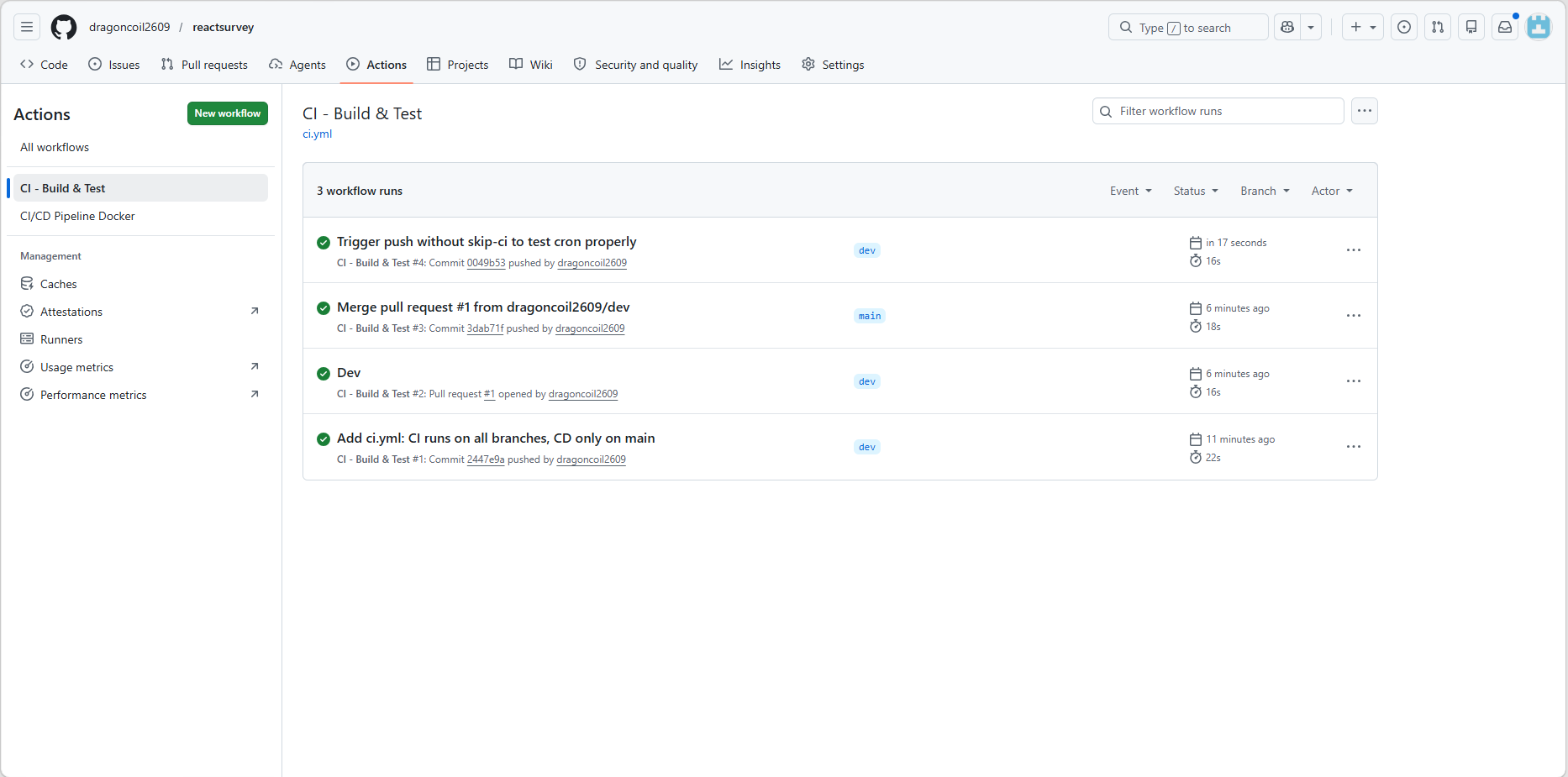 GitHub does not scan feature branches looking for schedules. For the schedule to take effect, the YAML has to be merged into
 main.
Reference: Events that trigger workflows - GitHub Docs
The workflow_* family
These three events (dispatch / call / run) exist to wire workflows to each other, turning a pile of standalone YAML files into a chained pipeline. Same rule as above: files that use these events must live on main for GitHub to pick them up.
-
workflow_dispatch: produces a "Run workflow" button in the web UI. Supports passing in extrainputswhen triggered manually. Handy for risky flows that need a human in the loop — server cleanup, rollback, etc. (Note: the button only appears when the YAML is onmain. Once you click it, GitHub lets you pick any branch to actually run against.)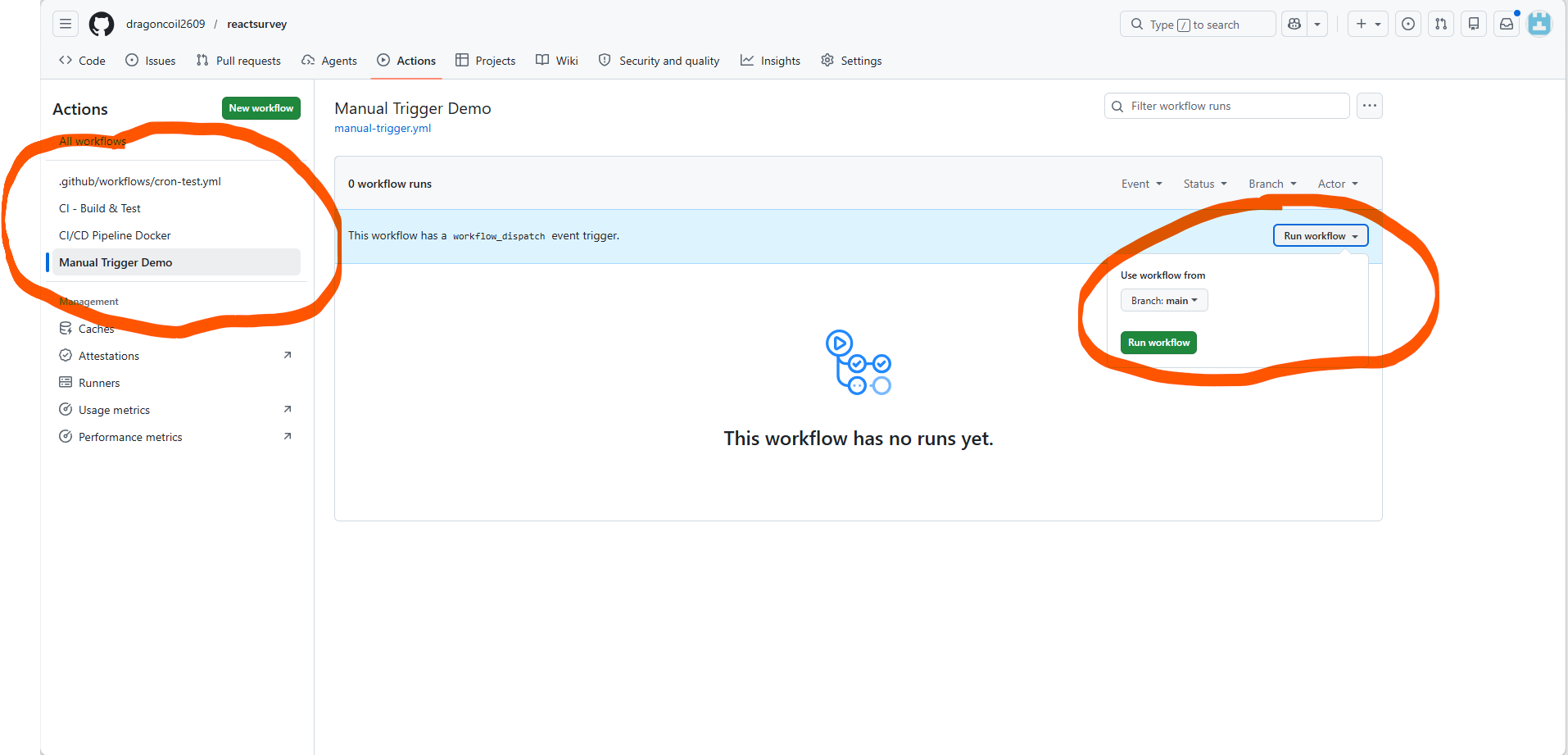
-
workflow_call: declares a YAML file as a reusable workflow. Cuts down on the copy-paste of the same deploy script across many repos. Edit it in one central place and every repo that calls it picks up the change automatically.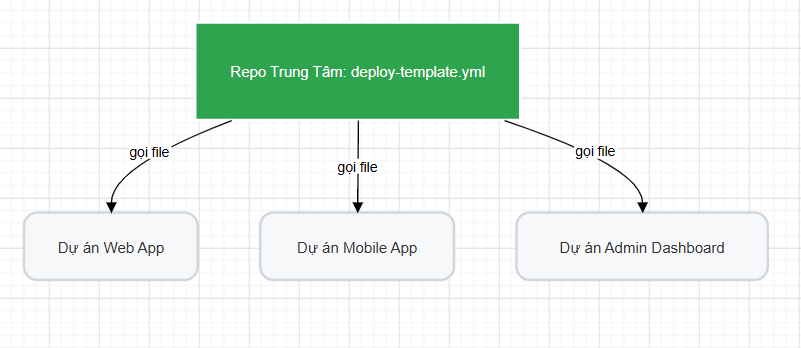
-
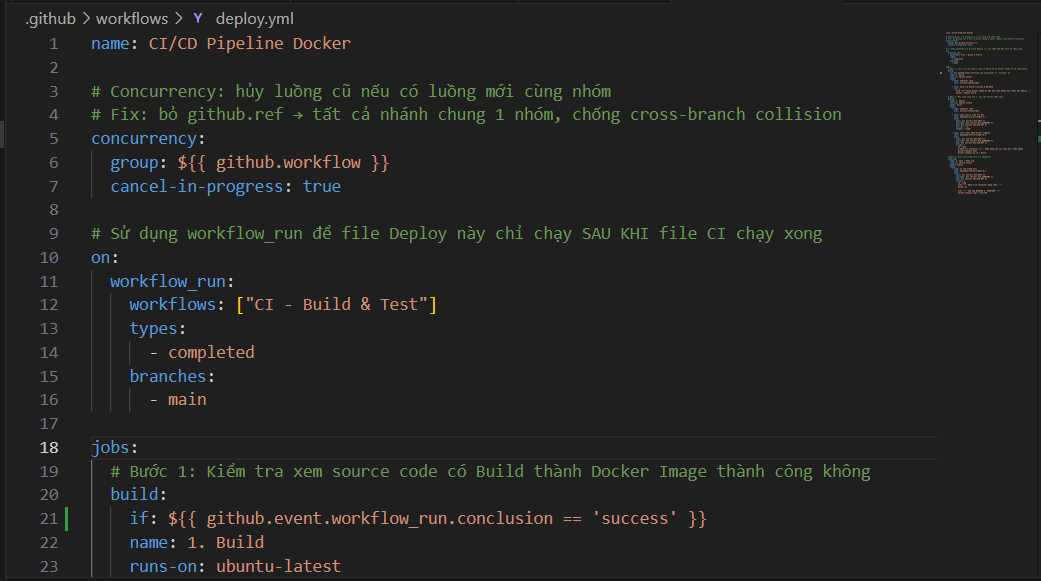
workflow_run: triggers workflow B automatically when workflow A finishes. Implements a Fail-Fast principle: the sensitive Deploy workflow is only allowed to continue if the upstream Test workflow returned Success.
⚠️ Important gotcha: by default, the downstream workflow triggered by
workflow_runchecks out the source from the default branch (main), NOT the exact commit the upstream Test workflow ran against. This can quietly deploy the wrong code! The fix: pin the checkout to the upstream SHA:yaml - uses: actions/checkout@v4 with: ref: ${{ github.event.workflow_run.head_sha }}

Reference: Reusing workflows - GitHub Docs
Cache dependencies
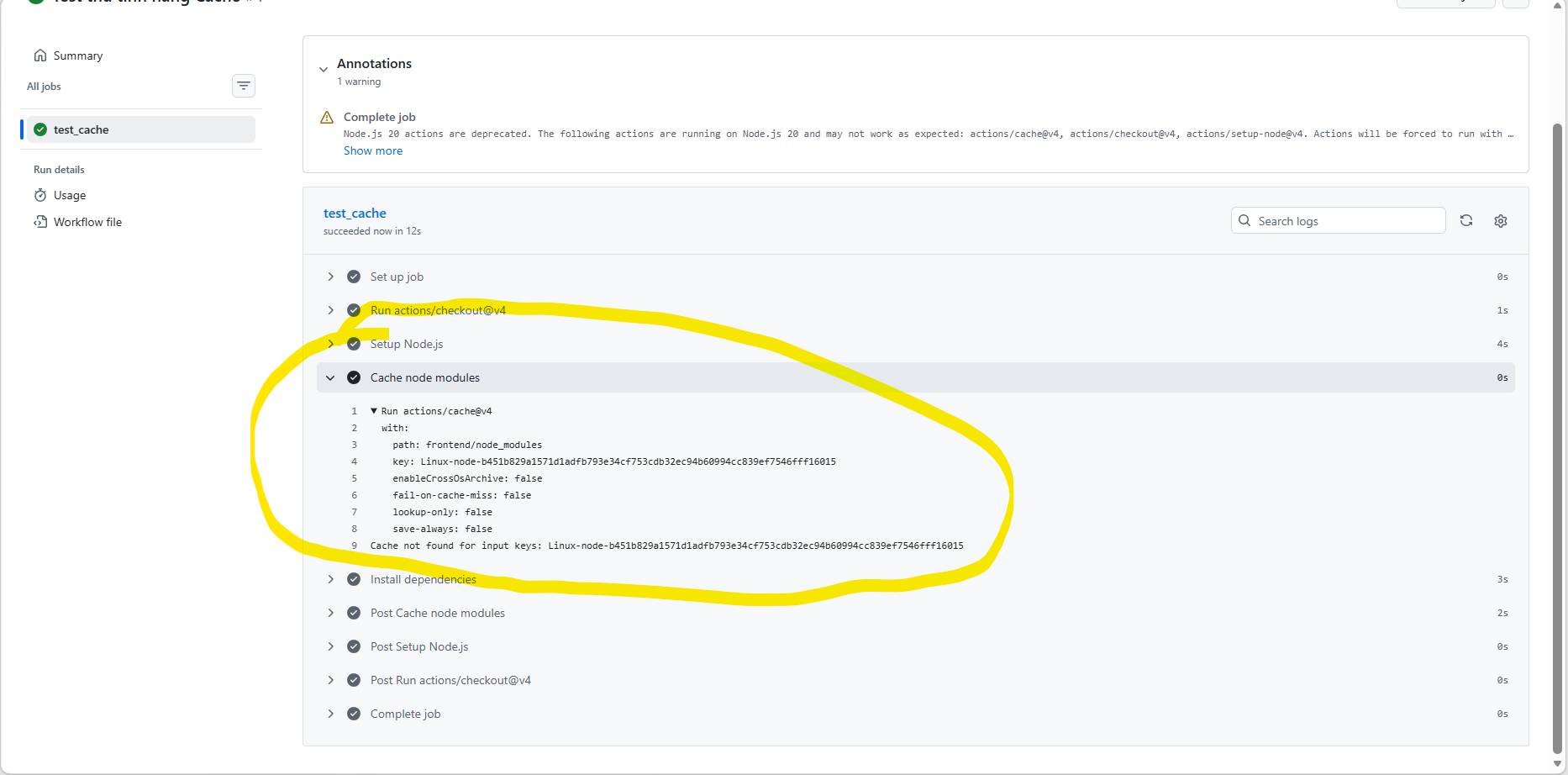
In Node.js or React projects, every CI/CD run wastes time running npm install and re-downloading hundreds of MB of dependencies. The cache mechanism solves this by zipping up the dependency tree the first time and uploading it to GitHub's cache storage. On subsequent runs, if the dependency list has not changed, the cache is pulled down directly.
How to do it:
- Hash the lockfile: every time you install a new dependency, package-lock.json changes. Use hashFiles('**/package-lock.json') to produce a unique identifier.
- Modern best practice: instead of using actions/cache standalone, enable caching via actions/setup-node@v4 — it ships with built-in restore-keys for fallback when no exact cache hit is found:
yaml
      - uses: actions/setup-node@v4
        with:
          node-version: '20'
          cache: 'npm'  # Auto-manages cache + restore-keys
      - run: npm ci
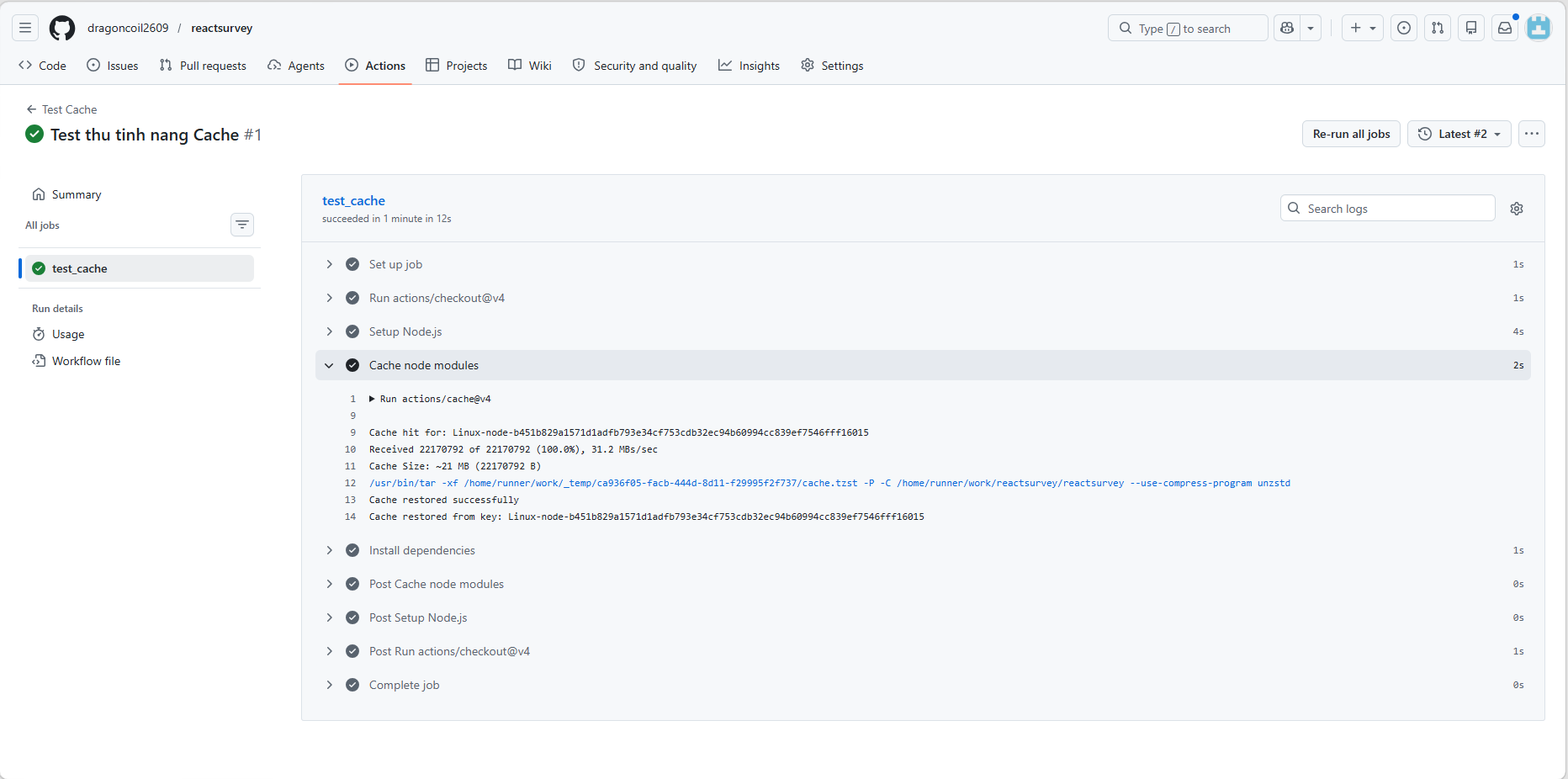
Result: when dependencies have not changed, the hash matches and the cache is pulled down, dropping install time from minutes to seconds.
(Sample: first run — cache miss, full re-download)
(Sample: second run — fast pull from cache)
Reference: Caching dependencies to speed up workflows - GitHub Docs
Matrix strategy
Any time you find yourself repeating the same block of steps that only differs by environment or version, that is when you reach for a matrix. Instead of copy-pasting the YAML into many flavours (which is error-prone), the matrix fans out the configuration for you.
Common cases:
1. Compatibility testing: make sure the code runs cleanly across multiple operating systems (Windows, macOS, Ubuntu) and Node versions (16, 18, 20).
2. Multi-architecture Docker builds: automatically produce images for Intel chips (amd64) alongside ARM (arm64).
3. Microservices deploys: one YAML drives the build of multiple services (user, order, payment, ...).
Example matrix testing on 3 operating systems × 3 Node versions:
jobs:
  test_code:
    strategy:
      fail-fast: false  # one failing cell shouldn't cancel the others
      matrix:
        os: [ubuntu-latest, windows-latest, macos-latest]
        node-version: [16, 18, 20]
    runs-on: ${{ matrix.os }} # OS is dynamic
    steps:
      - uses: actions/checkout@v4
      - name: Install Node.js
        uses: actions/setup-node@v4
        with:
          node-version: ${{ matrix.node-version }} # Node version is dynamic
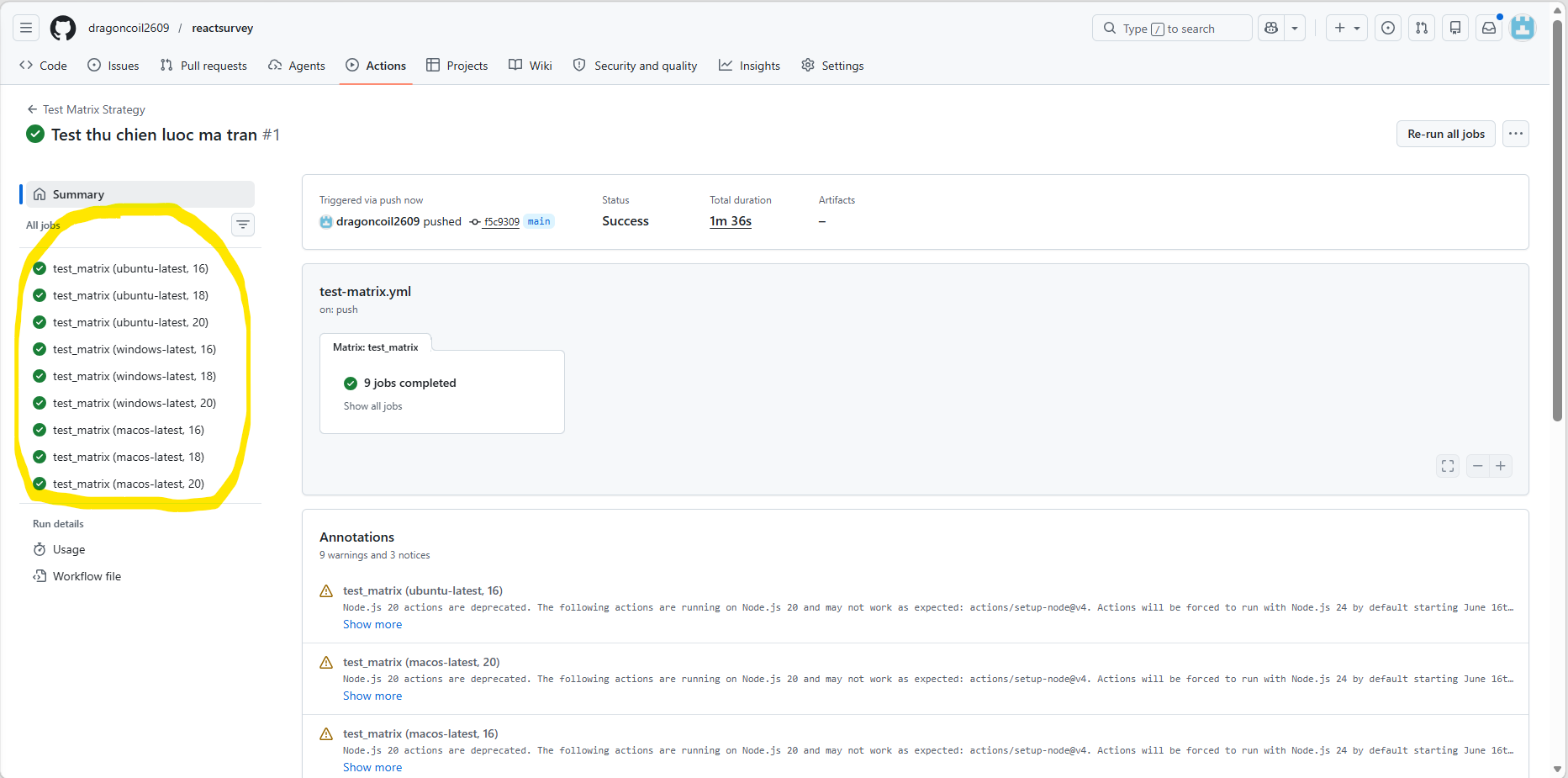
Result: GitHub fans the configuration out into $3 \times 3 = 9$ independent runs (e.g. Ubuntu running Node 16, …). Failures are pinpointed to the exact environment.
(Sample: 9 parallel runs from a single config)
Reference: Using a matrix for your jobs - GitHub Docs
Docker Hub
Part 1's biggest weakness is that SCP copies each source file directly, forcing the EC2 instance to act as both web server and build server — easy to exhaust resources.
The proper DevOps shape pushes the heavy lifting back to GitHub Actions. The source is pre-built into a Docker image and pushed to Docker Hub. EC2 then only has to pull the image and run it.
Two important things to get right:
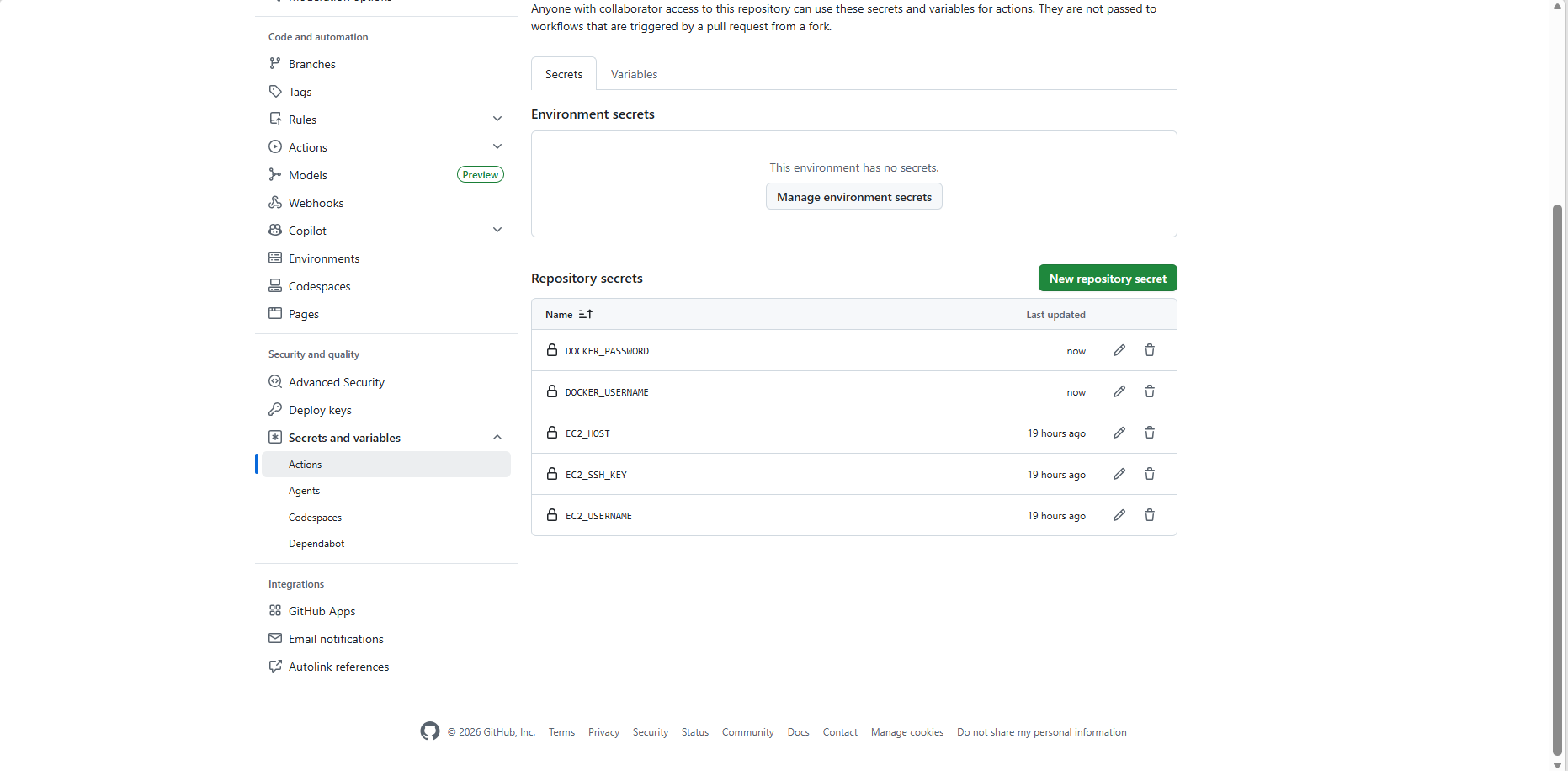
1. Use a Personal Access Token (PAT): don't store your Docker Hub password directly in GitHub Secrets (DOCKER_PASSWORD). Go to Docker Hub's Security tab and create a Personal Access Token instead. PATs are easier to scope, easier to rotate, and easier to revoke if leaked.
2. Don't lean on the :latest tag: tagging every image with :latest makes rollback a nightmare. Use ${{ github.sha }} to tag each image with the commit SHA — every build becomes uniquely identifiable.
(Hands-on) Two-job pipeline for speed:
Add two secrets to GitHub: DOCKER_USERNAME and DOCKER_PASSWORD (the latter holding your PAT).
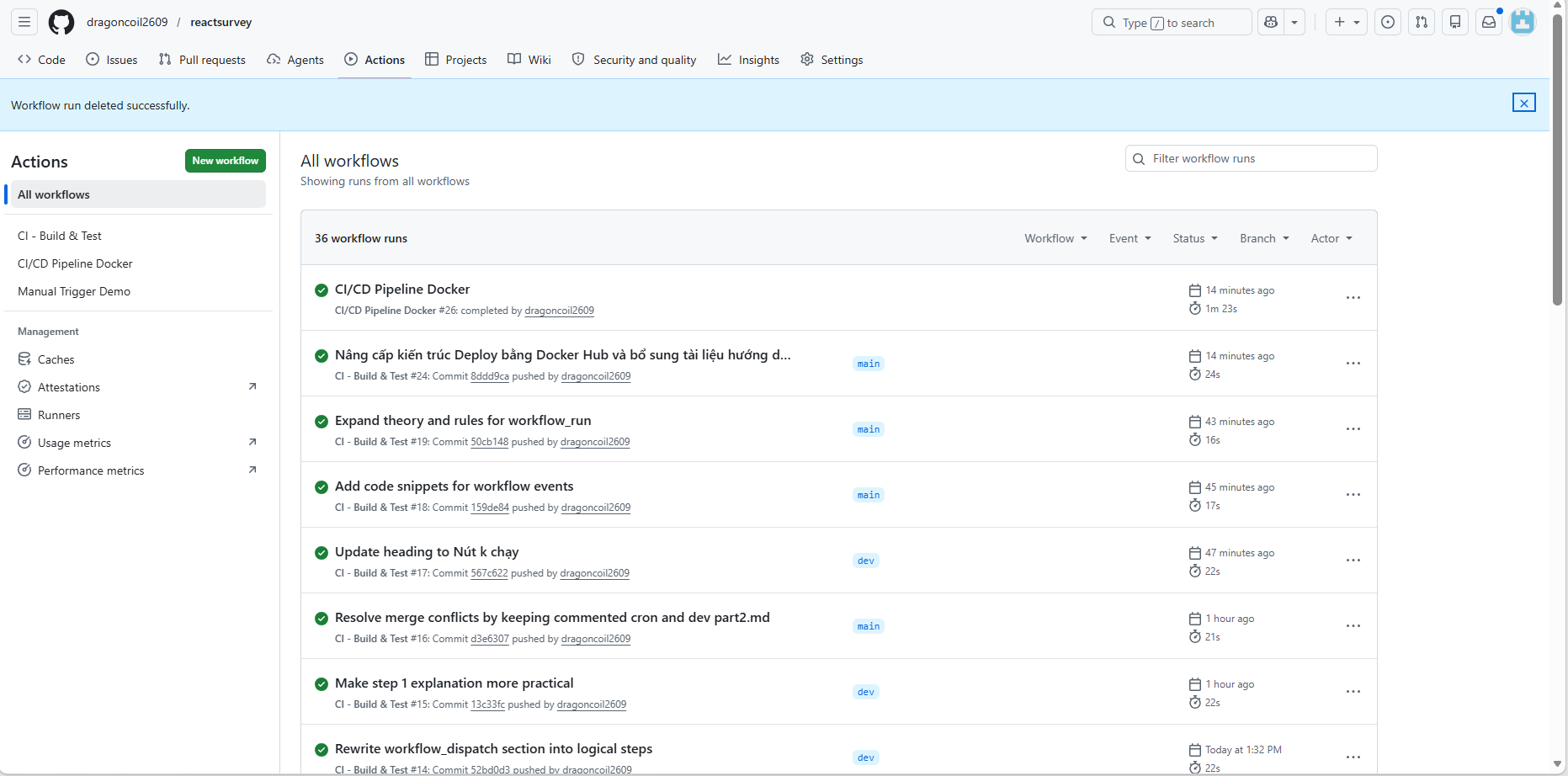
Split the pipeline into two distinct jobs:
- Job 1 (Build & Push): package the image and push it to the registry.
- Job 2 (Deploy Fast): EC2 just pulls the pre-built image from Docker Hub and runs it.
The SCP step in Job 2 now only needs to ship docker-compose.yml — deploys are dramatically faster and more stable.
Sample YAML for the Build & Push job:
  build_and_push:
    runs-on: ubuntu-latest
    steps:
      - uses: actions/checkout@v4

      - name: Log in to Docker Hub
        uses: docker/login-action@v3
        with:
          username: ${{ secrets.DOCKER_USERNAME }}
          password: ${{ secrets.DOCKER_PASSWORD}}   # use a PAT, not the account password

      - name: Set up Buildx
        uses: docker/setup-buildx-action@v3

      - name: Build and Push with a SHA tag
        uses: docker/build-push-action@v5
        with:
          context: .
          push: true
          tags: |
            ${{ secrets.DOCKER_USERNAME }}/my-app:${{ github.sha }}
            ${{ secrets.DOCKER_USERNAME }}/my-app:latest
Reference: Publishing Docker images - GitHub Docs
permissions: block
By default, GitHub Actions hands out a GITHUB_TOKEN with fairly broad read/write privileges. The principle of least privilege says to start by stripping all default permissions and granting back only what a job actually needs.
How to set it up:
At the top of the .yml file, add a permissions block and lock things down to read-only:
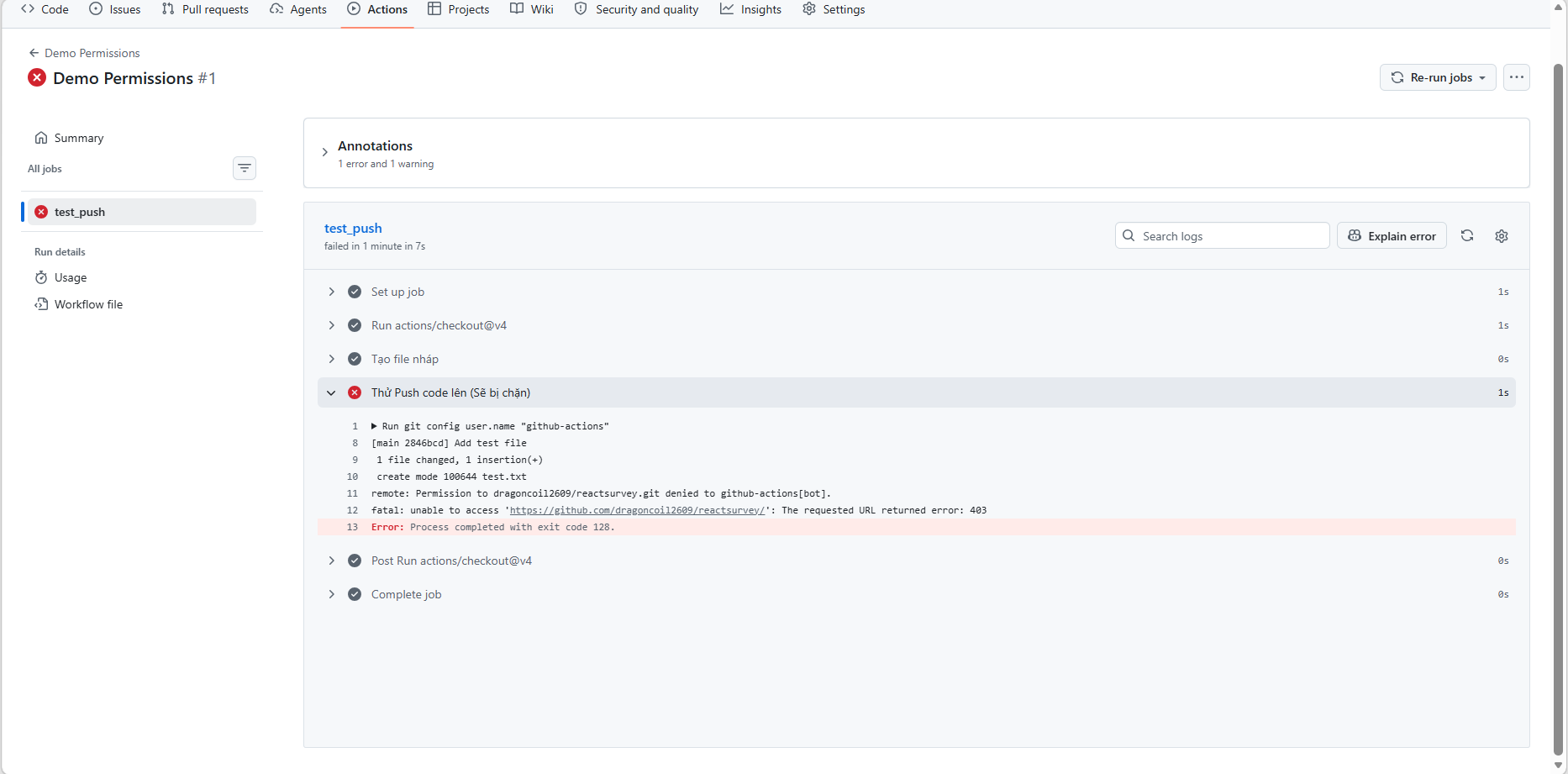
permissions: read-all # Or stricter: permissions: {}
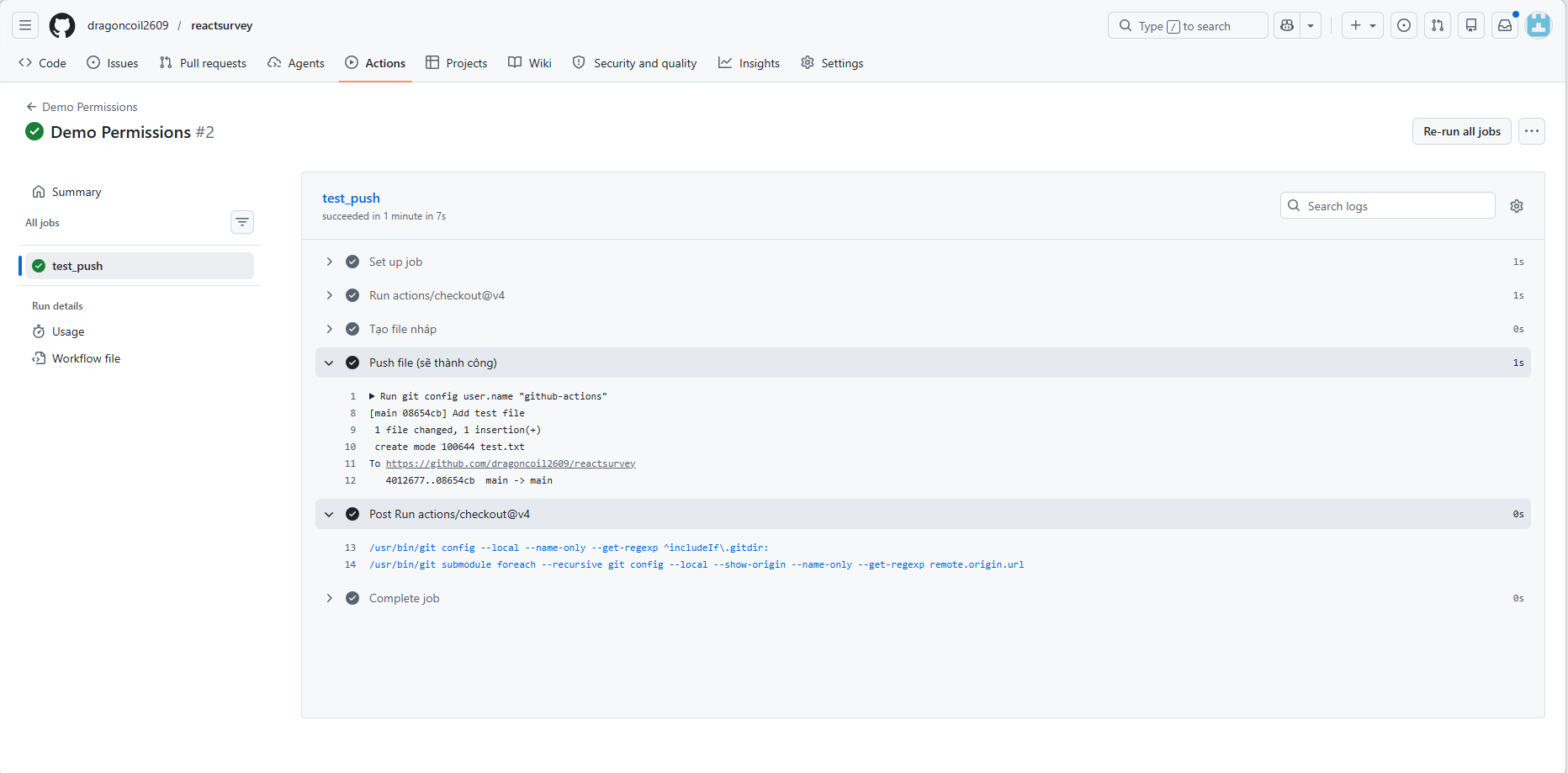
(Sample: a run fails with 403 Forbidden because write was stripped)
Then grant exactly the permissions a Job needs. For example, a job that asks AWS for an OIDC token only needs id-token write:
jobs:
  deploy:
    permissions:
      id-token: write # Allow the job to mint a short-lived token
      contents: read  # Read source code
(Sample: the run succeeds after being granted the right scopes)
Reference: Assigning permissions to jobs - GitHub Docs
OIDC for AWS
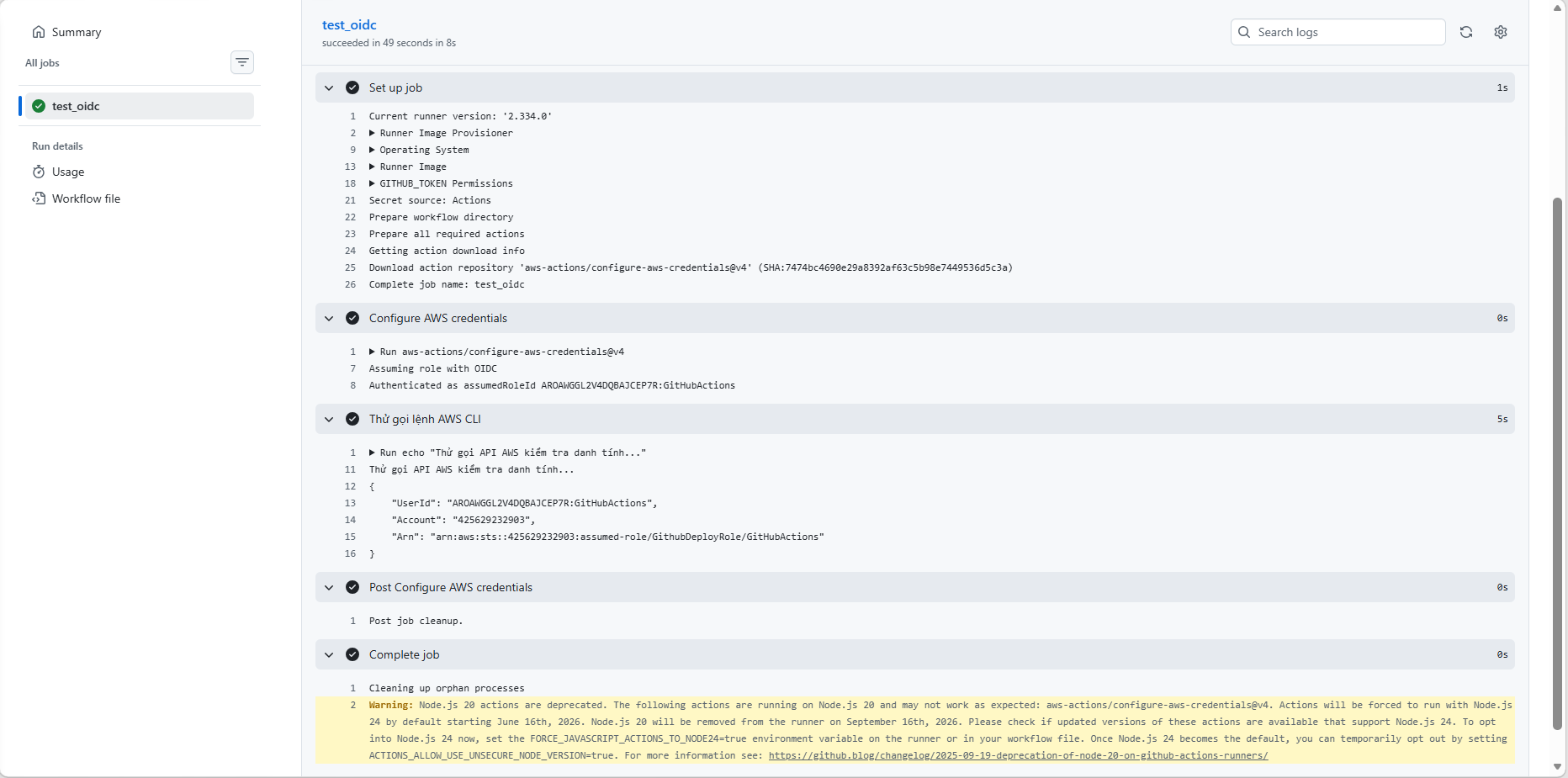
Storing static keys (like AWS_ACCESS_KEY or EC2_SSH_KEY) in GitHub Secrets carries the risk of a permanent credential leak. Modern security favours OpenID Connect (OIDC). GitHub and AWS authenticate directly with each other using short-lived tokens — when the workflow ends, the token is gone.
How to set up OIDC:
- Register the Identity Provider: in AWS IAM, create an Identity Provider pointing to GitHub's token endpoint (token.actions.githubusercontent.com). Use thumbprint 6938fd4d98bab03faadb97b34396831e3780aea1.
- Create an IAM Role with a Trust Policy: the trickiest step. A sample JSON that only trusts tokens from a specific repo's main branch:
json
  {
    "Version": "2012-10-17",
    "Statement": [{
      "Effect": "Allow",
      "Principal": {
        "Federated": "arn:aws:iam::ACCOUNT_ID:oidc-provider/token.actions.githubusercontent.com"
      },
      "Action": "sts:AssumeRoleWithWebIdentity",
      "Condition": {
        "StringEquals": {
          "token.actions.githubusercontent.com:aud": "sts.amazonaws.com"
        },
        "StringLike": {
          "token.actions.githubusercontent.com:sub": "repo:OWNER/REPO:ref:refs/heads/main"
        }
      }
    }]
  }
- Ask for the id-token permission in YAML: add id-token: write.
- Use the configuration action: pass the Role ARN into the step:
yaml
  - name: Configure AWS credentials
    uses: aws-actions/configure-aws-credentials@v4
    with:
      role-to-assume: arn:aws:iam::111122223333:role/MyGitHubDeployRole
      aws-region: ap-southeast-1
(Sample: OIDC succeeds and GitHub Actions gets a short-lived AWS token)
Reference: Configuring OpenID Connect in Amazon Web Services - GitHub Docs
Environment & Required Reviewers
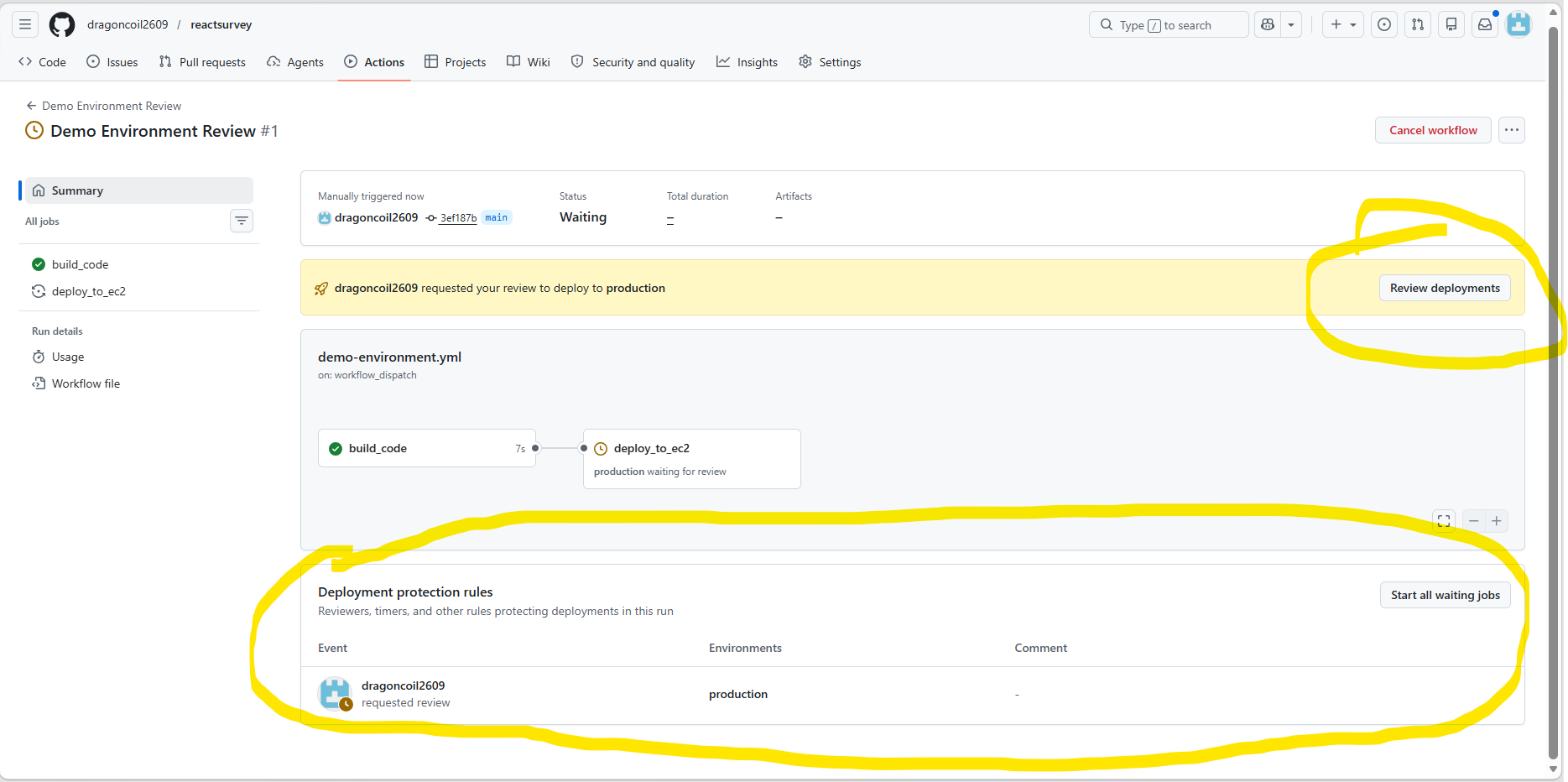
Fully automating the deploy to Production is risky without any review. The environment feature plus an approval gate (Required reviewers) lets the pipeline pause and wait for a human to approve before going live.
How to set it up:
- Create a virtual environment named production under Settings > Environments of the repo.
- Tick "Required reviewers" and add the reviewer's account.
- In YAML, attach the environment to the Job:
yaml
  jobs:
    deploy_to_ec2:
      runs-on: ubuntu-latest
      environment: production # Attach the environment
      steps:
        # deploy steps...
On top of Required Reviewers, Environment supports a few other advanced features:
- Wait timer: after the reviewer hits Approve, GitHub still waits X minutes before actually firing — a built-in window to catch problems.
- Branch restriction: only allow main to deploy to Production. Feature/dev branches are blocked.
- Environment-scoped secrets: keep separate Secrets per environment (Staging / Production). The Staging pipeline can never read Production secrets.
Result: when the run reaches the Deploy step, it pauses and waits. Only after a reviewer approves does the deploy actually fire.
(Sample: the deploy paused while waiting for reviewer approval)
Wrap-up: a checklist to apply to your pipeline
Now that the advanced techniques are out on the table, run through this checklist on your Part 1 pipeline:
- [ ] Add
concurrency: group: ${{ github.workflow }}to prevent parallel runs from racing - [ ] Wire up dependency caching (npm, pip) to cut install time
- [ ] Split
deployinto two jobs: one Builds the image and pushes to a registry, one Pulls the image onto EC2 - [ ] Apply Matrix Strategy if you need to test across multiple Node/OS versions
- [ ] Replace the Docker Hub password with a Personal Access Token (PAT)
- [ ] Tag images with
${{ github.sha }}instead of:latest - [ ] Tighten
permissionsat the Job level instead of relying on the default - [ ] Move from
AWS_ACCESS_KEYto OIDCrole-to-assume - [ ] Add an
environmentto the Production flow to enable the approval gate
You've reached the end