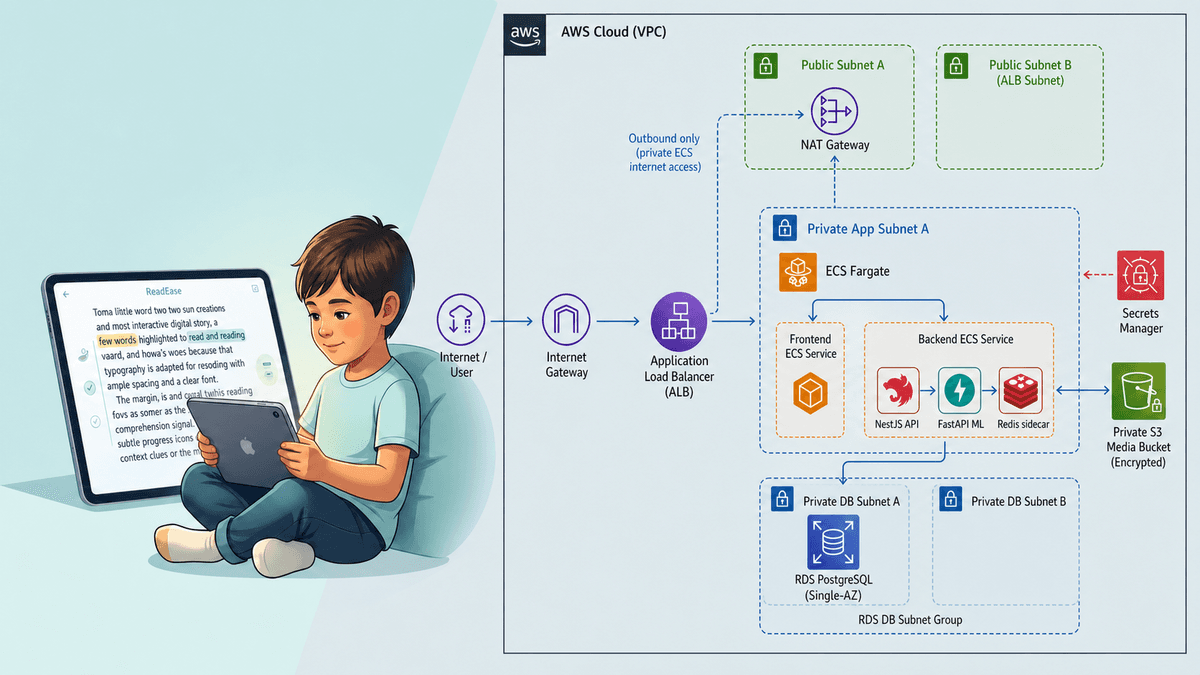
VPC and Security Group: Networking and Basic Firewalling on AWS
In Article 2 we opened ports 22 and 80 for the instance without really understanding the networking behind it. This article explains VPC and Security Group: where your instance lives and what decides who can reach it.
The first part leans toward concepts, because networking is something you need to understand before doing. The second part is hands-on: inspecting the existing network and tightening access for an instance.
Goals
- Understand what VPC, subnet, route table, and internet gateway are and how they relate.
- Distinguish public and private subnets.
- Understand how a Security Group works and how it differs from an ordinary firewall.
- Hands-on: inspect the default VPC and create a tightened Security Group for EC2.
Estimated cost
The networking components in this article (VPC, subnet, route table, internet gateway, Security Group) are all free. The hands-on part recreates a t2.micro EC2 to test with, billed the same as Article 2 and cleaned up at the end.
One note: NAT Gateway (mentioned when we talk about private subnets) is a service that is billed by the hour, even when not in use. This article only explains it and doesn't create a NAT Gateway, so you incur no cost from it.
What a VPC is
A VPC (Virtual Private Cloud) is your own private network inside AWS. Every resource that needs networking — like EC2, RDS — lives in a VPC. Picture a VPC as a fenced plot of land: inside is your network, and AWS guarantees it's isolated from other accounts' networks.
When you create an account, AWS has already created a default VPC for each region. The instance in Article 2 ran in this VPC without you configuring anything. Each VPC has its own range of IP addresses (CIDR block), for example 172.31.0.0/16.
Inspect the default VPC with the CLI:
aws ec2 describe-vpcs \
  --query "Vpcs[].{ID:VpcId,CIDR:CidrBlock,Default:IsDefault}" \
  --output table
Subnet: dividing the VPC
A VPC is divided into multiple subnets. Each subnet sits in one Availability Zone — a physical AWS data center within the region. Splitting across multiple AZs helps the system survive failures: if one AZ goes down, another keeps running.
The most important thing for beginners is to distinguish the two kinds of subnet:
- Public subnet: has a direct path to the Internet. Resources here (like a web server) can receive traffic from the Internet and reach out to the Internet themselves. The Article 2 instance was in a public subnet, which is why it had a Public IP and you could SSH in.
- Private subnet: has no direct path to the Internet. Resources here (like a database) can't be reached directly from outside, which is safer. A database should sit in a private subnet — we come back to this in Article 5.
What makes a subnet public or private isn't the name, it's the route table.
Route table and Internet Gateway
A route table is a routing table that dictates where traffic in a subnet goes. Each subnet is associated with a route table.
The Internet Gateway (IGW) is the doorway connecting the VPC to the Internet. A subnet becomes public when its route table has a line: "any address outside the VPC (0.0.0.0/0) goes through the Internet Gateway." Without that line, the subnet is private.
In short, the chain is: an instance sits in a subnet, the subnet is attached to a route table, and the route table has (or doesn't have) a path out via the Internet Gateway. That's what makes a machine "able to reach the Internet" or not.
So how does a private subnet update software or download install packages if it can't reach the Internet? The answer is the NAT Gateway: it lets resources in a private subnet reach out to the Internet (to download) but doesn't let the Internet in. NAT Gateway bills by the hour, so we don't create one in this series. Just know it exists to solve that problem.
Security Group: the instance's firewall
A Security Group (SG) is a firewall attached at the per-instance level, deciding which traffic is allowed in and out. In Article 2, when we opened ports 22 and 80, we were adding rules to a Security Group.
A few characteristics to grasp:
- An SG works as allow-only, with no deny rules. If there's no allow rule, the traffic is blocked by default. You list what's allowed in, and everything else is blocked automatically.
- An SG is stateful: if you allow a connection in, the response traffic is automatically allowed out, no separate outbound rule needed.
- Each rule has: a protocol (TCP/UDP), a port, and a source (for inbound) — the source can be an IP range, or another Security Group.
That last point is very useful: the source of a rule can be another Security Group instead of an IP range. For example, "only instances in the web server's SG can connect to the database" — we'll use exactly this pattern in Article 5.
A common beginner mistake is leaving SSH (port 22) open to 0.0.0.0/0. Then every address on the Internet can try to log in, and port-scanning bots will constantly probe for passwords. The rule: SSH only open to your IP, while the web ports (80, 443) are open wide because that's their purpose.
Hands-on: create a tightened Security Group and attach it to an instance
We'll create a Security Group with the CLI to make each rule explicit, then use it when creating an instance.
First get the default VPC's ID and your current public IP:
# Get the default VPC id
VPC_ID=$(aws ec2 describe-vpcs --filters Name=isDefault,Values=true \
  --query "Vpcs[0].VpcId" --output text)
echo $VPC_ID

# Get your machine's current public IP
MY_IP=$(curl -s https://checkip.amazonaws.com)
echo $MY_IP
Create the Security Group:
SG_ID=$(aws ec2 create-security-group \
  --group-name web-ssh-restricted \
  --description "SSH chi cho IP cua toi, HTTP cho moi nguoi" \
  --vpc-id $VPC_ID \
  --query "GroupId" --output text)
echo $SG_ID
Add an SSH rule for your IP only (note that /32 means exactly that one address):
aws ec2 authorize-security-group-ingress \
  --group-id $SG_ID \
  --protocol tcp --port 22 --cidr ${MY_IP}/32
Add an HTTP rule for everyone:
aws ec2 authorize-security-group-ingress \
  --group-id $SG_ID \
  --protocol tcp --port 80 --cidr 0.0.0.0/0
Review the rules you just created:
aws ec2 describe-security-groups --group-ids $SG_ID \
  --query "SecurityGroups[0].IpPermissions" --output json
You'll see two rules: port 22 restricted to your IP, port 80 open wide. This is exactly the configuration we want for a web server.
To verify, quickly create an instance using this exact SG (it needs a public subnet — grab the first subnet in the default VPC):
SUBNET_ID=$(aws ec2 describe-subnets --filters Name=vpc-id,Values=$VPC_ID \
  --query "Subnets[0].SubnetId" --output text)

# Latest Amazon Linux 2023 AMI (via SSM Parameter Store)
AMI_ID=$(aws ssm get-parameters \
  --names /aws/service/ami-amazon-linux-latest/al2023-ami-kernel-default-x86_64 \
  --query "Parameters[0].Value" --output text)

aws ec2 run-instances \
  --image-id $AMI_ID \
  --instance-type t2.micro \
  --key-name devops-key \
  --security-group-ids $SG_ID \
  --subnet-id $SUBNET_ID \
  --associate-public-ip-address \
  --tag-specifications 'ResourceType=instance,Tags=[{Key=Name,Value=vpc-test}]' \
  --query "Instances[0].InstanceId" --output text
Wait for the instance to be Running, grab its Public IP, and try SSH as in Article 2. Since a home IP can change over time, if you later can't SSH in, run the authorize-security-group-ingress command again with the new IP.
🧹 Cleanup
This article creates one instance (billable) and one Security Group (not billable). Delete the instance first, because a Security Group attached to an instance can't be deleted.
# Get the vpc-test instance id, then terminate
INSTANCE_ID=$(aws ec2 describe-instances \
  --filters Name=tag:Name,Values=vpc-test Name=instance-state-name,Values=running \
  --query "Reservations[0].Instances[0].InstanceId" --output text)

aws ec2 terminate-instances --instance-ids $INSTANCE_ID
Wait for the instance to reach the terminated state (check with describe-instances as in Article 2), then delete the Security Group:
aws ec2 delete-security-group --group-id $SG_ID
If the SG delete command reports "resource in use", it means the instance hasn't finished terminating; wait a bit longer and try again.
Final check: no running instances, and the web-ssh-restricted SG is gone from the list:
aws ec2 describe-security-groups \
  --query "SecurityGroups[].GroupName" --output table
Wrap-up
Now you understand where your instance lives (VPC, subnet) and what decides whether it can reach the Internet (route table, Internet Gateway), as well as how a Security Group controls access. The most important rule to take away: SSH only open to your IP, and a database should live in a private subnet rather than exposed to the Internet.
In Article 4 we switch to storage with S3: a place to store files and host a static site without any server running continuously.