RDS: Running an AWS-Managed PostgreSQL Database
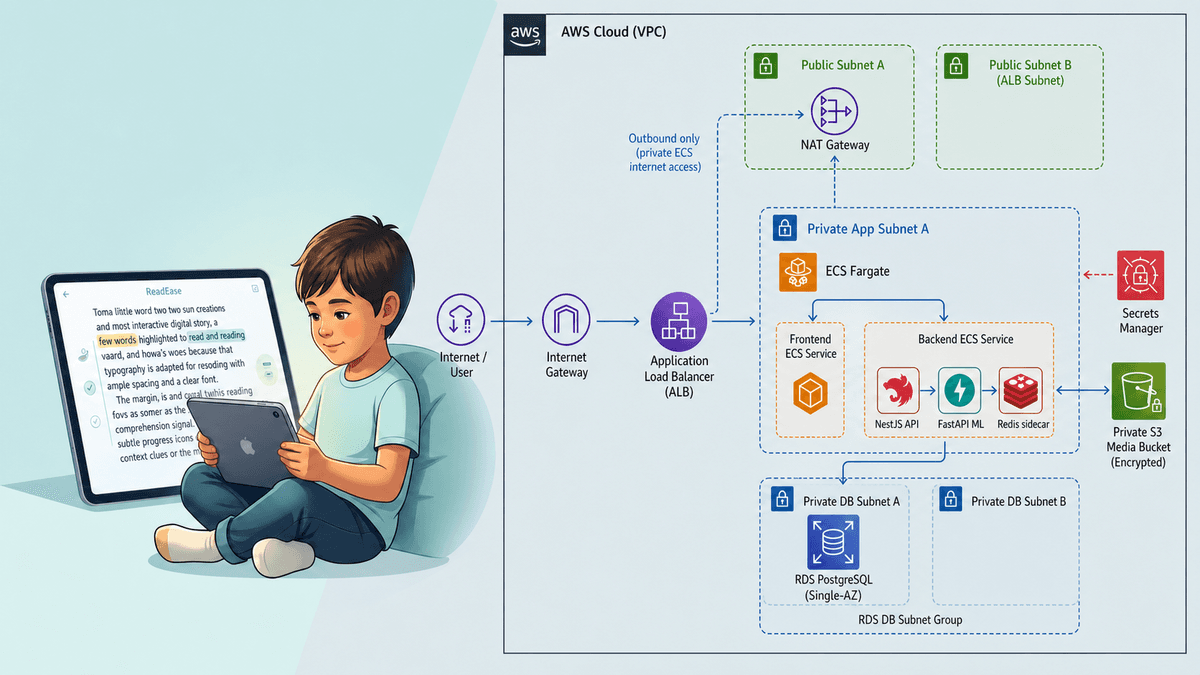
In this article we create a PostgreSQL database with RDS, place it somewhere safe on the network, then connect to it from an EC2 instance. This is where the private subnet and Security Group lessons from Article 3 get applied directly.
RDS (Relational Database Service) is AWS's managed service for relational databases (PostgreSQL, MySQL, MariaDB, SQL Server, etc.). You don't install, patch, back up, or deal with hardware failures yourself — AWS handles all that. You focus on the data and the queries.
Goals
- Create an RDS PostgreSQL
db.t3.microwith no Internet access. - Configure a Security Group so only your EC2 can connect to the database.
- Connect from EC2 and run a few SQL statements.
- Clean up properly — the most important part of this article.
Expected cost
RDS is the service most likely to generate a large bill in this series, because databases are usually designed to run continuously and come with many expensive options.
- Credit-model account (created after 2025-07-15): the
db.t3.microcost is deducted from credit; trying out RDS also counts toward activities that earn more credit. - Legacy-model account (created before 2025-07-15): 750 hours of
db.t3.microSingle-AZ free, plus 20 GB storage and 20 GB backup per month for the first 12 months.
Two money traps to avoid when creating it:
- Multi-AZ: creates an extra standby replica in another AZ, doubling the cost. For learning, choose Single-AZ.
- Large instance: pick
db.t3.microonly, nothing bigger.
And important: a stopped RDS instance restarts automatically after at most 7 days, so "stop it to save money" is not a cleanup strategy. When you're done, you must delete the instance outright — see the end of the article.
Why RDS instead of running your own database on EC2
You can absolutely SSH into EC2 and install PostgreSQL yourself. But then you take on all the operational work that comes with it:
- Backups: build a periodic backup mechanism yourself and verify you can restore.
- Patching: track and apply PostgreSQL security patches yourself.
- Disaster recovery: if the machine dies, you rebuild it and restore the data yourself.
- Scaling: handle capacity or configuration changes yourself.
RDS does these for you: automated backups, scheduled patching, point-in-time recovery, and scaling up the configuration with a few clicks. In return, you pay slightly more than running it yourself. For nearly every real system, that's a worthwhile trade-off — which is why RDS is so popular.
Prep: an EC2 to connect to the database
The database in this article sits in a private subnet and accepts no connections from the Internet. To reach it, we need an EC2 in the same VPC as the connection point.
If you cleaned up EC2 in earlier articles, quickly stand up an instance like in Article 2 (Amazon Linux 2023, t2.micro, key devops-key, a Security Group with SSH open to your IP). Note this instance's Security Group ID — we need it later. You can grab it quickly with the CLI:
# Get the SG id of the running instance (assuming there's only one)
EC2_SG=$(aws ec2 describe-instances \
  --filters Name=instance-state-name,Values=running \
  --query "Reservations[0].Instances[0].SecurityGroups[0].GroupId" \
  --output text)
echo $EC2_SG
Step 1: Create a Security Group for the database
The database should only accept connections from your EC2, nowhere else. We create a Security Group for RDS, opening the PostgreSQL port (5432) only to the EC2's Security Group — exactly the "source is another SG" pattern from Article 3.
VPC_ID=$(aws ec2 describe-vpcs --filters Name=isDefault,Values=true \
  --query "Vpcs[0].VpcId" --output text)

# Create an SG for RDS
RDS_SG=$(aws ec2 create-security-group \
  --group-name rds-postgres-sg \
  --description "Cho phep EC2 ket noi toi RDS" \
  --vpc-id $VPC_ID \
  --query "GroupId" --output text)

# Open port 5432 only to the EC2's SG
aws ec2 authorize-security-group-ingress \
  --group-id $RDS_SG \
  --protocol tcp --port 5432 \
  --source-group $EC2_SG

echo "RDS SG: $RDS_SG"
This way, only instances in Security Group $EC2_SG can open a connection to the database. Even if someone knows the database address, they can't get in unless they're in that SG.
Step 2: Create the RDS PostgreSQL instance
For a database, the console is clearer for the first time. Go to the RDS > Create database service.
- Engine: choose PostgreSQL.
- Templates: choose Free tier if available (legacy account), or Dev/Test and tune it down yourself.
- Availability: choose Single-AZ (do not enable Multi-AZ).
- DB instance identifier: for example
devops-db. - Master username / password: set them and write them down. For example user
postgresand a strong password. - Instance configuration: choose
db.t3.micro. - Storage: leave the default 20 GB and disable the storage autoscaling option to avoid surprises.
- Connectivity:
- Public access: choose No. This is the key point: the database accepts no direct connections from the Internet.
- VPC security group: choose Choose existing, remove default, and select the
rds-postgres-sgyou just created.
- Additional configuration: set an Initial database name, for example
appdb, so RDS creates an empty database for you. - Click Create database.
RDS takes a few minutes to provision. When Status turns to Available, open the instance and copy the Endpoint (something like devops-db.xxxx.ap-southeast-1.rds.amazonaws.com). This is the address to connect to.
Step 3: Connect from EC2
SSH into EC2 (as in Article 2). Install the PostgreSQL client to get the psql command:
sudo dnf install postgresql15 -y
Connect to the database, replacing <ENDPOINT> with the endpoint you copied:
psql -h <ENDPOINT> -U postgres -d appdb
Enter the master password. If you get in, the prompt changes to appdb=>. Try a few statements:
CREATE TABLE notes (id SERIAL PRIMARY KEY, content TEXT);
INSERT INTO notes (content) VALUES ('Ghi chu dau tien tren RDS');
SELECT * FROM notes;
You just created a table, wrote a row, and read it back from a database running on RDS. Type \q to quit psql.
If the psql command hangs and times out, it's usually the Security Group: check that rds-postgres-sg has opened port 5432 to the correct SG of the EC2 you're using.
🧹 Cleanup
This is the most important part of the article. A forgotten RDS instance can cost a lot more than EC2. Remember that stop is not enough — RDS restarts itself after at most 7 days — so we delete it outright.
Delete the RDS instance via the CLI (note the two important flags):
aws rds delete-db-instance \
  --db-instance-identifier devops-db \
  --skip-final-snapshot \
  --delete-automated-backups
--skip-final-snapshot: don't create a final snapshot. Snapshots take up storage and still cost money, so drop it for learning data.--delete-automated-backups: also delete the automated backups.
Deletion takes a few minutes. Watch until the instance disappears:
aws rds describe-db-instances \
  --query "DBInstances[].{ID:DBInstanceIdentifier,Status:DBInstanceStatus}" \
  --output table
When the list is empty, the database has been deleted. Also check that no manual snapshot is left behind (snapshots incur storage charges too):
aws rds describe-db-snapshots --snapshot-type manual \
  --query "DBSnapshots[].DBSnapshotIdentifier" --output table
Once RDS is deleted, delete its Security Group:
aws ec2 delete-security-group --group-id $RDS_SG
Finally, if the EC2 was stood up only for this article, terminate it as in the Article 2 cleanup.
Wrap-up
You just created a managed database, placed it in a private network not exposed to the Internet, and allowed only your own EC2 to connect to it through a Security Group. This is the standard pattern for the data tier: the database lives in private, only the application accesses it, nothing is opened to the outside.
At this point you have all the basic infrastructure pieces: compute (EC2), network (VPC/SG), storage (S3), database (RDS). From Article 6 on, we move into packaging and automation: Dockerizing an application and pushing the image to ECR, to set up for CI/CD in Article 7.